01
The short answer
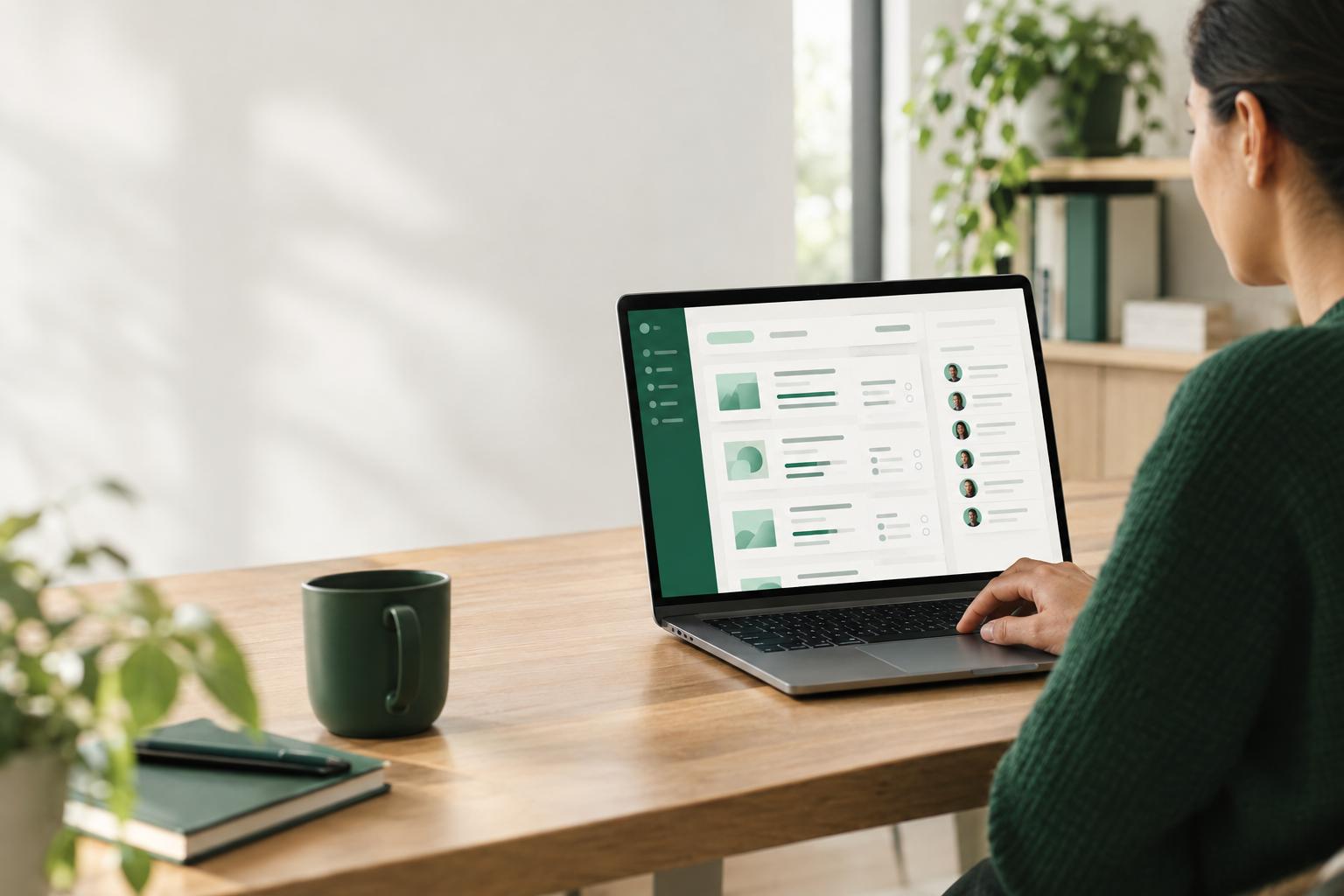
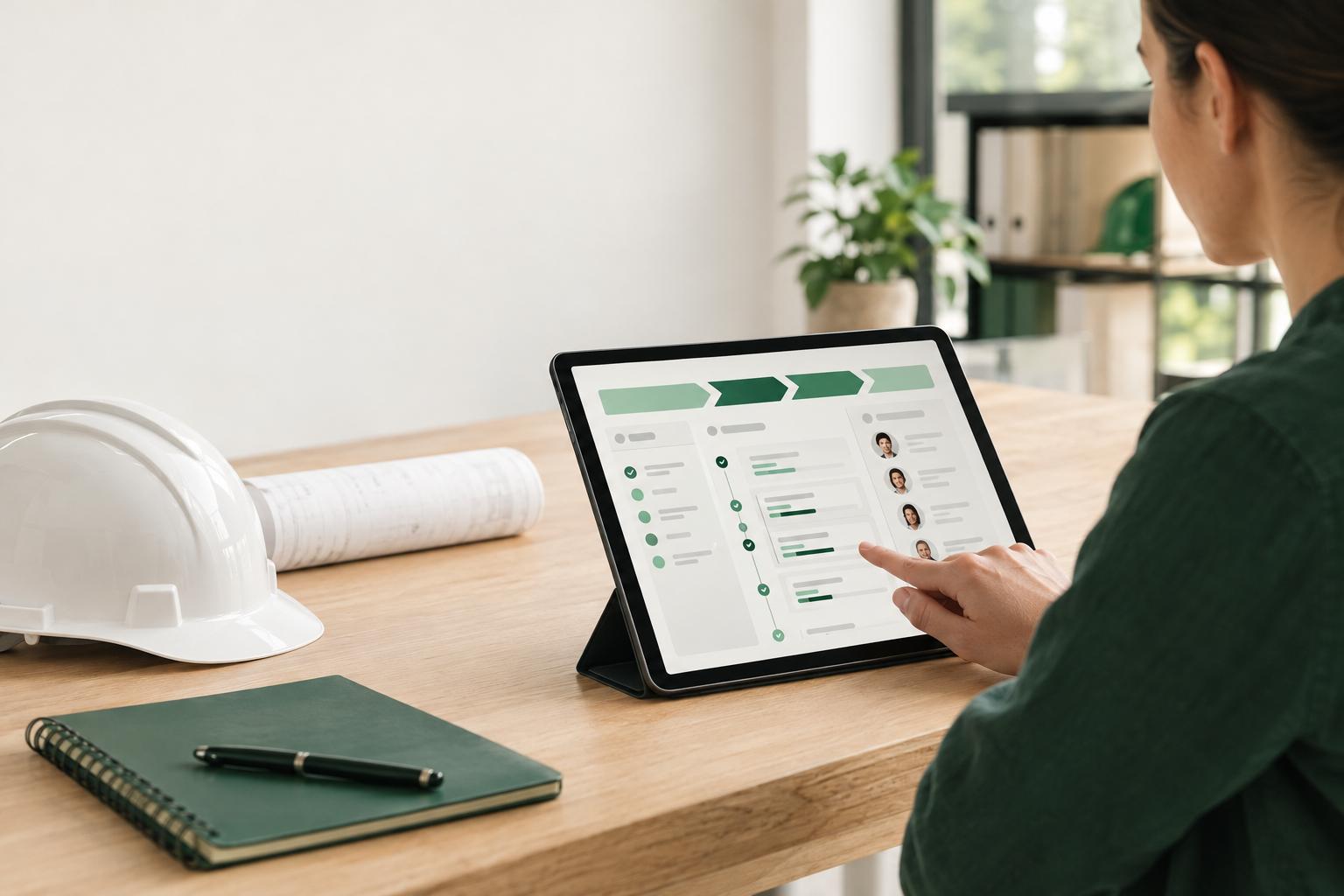
Open the live CrewDesk demo and follow a project through its stage, tasks, team, inventory and chat. The demo already includes these features, but its terminology and examples come from audiovisual production. For construction, we can rename elements to match your work and add features that are not there yet, such as daily site reports with photos, equipment transfers between sites and site-specific safety checklists. The demo has five stages, from Development to Delivered. Each project has its own team, dates, budget and documents.
CrewDesk may suit you if this structure already resembles the way you run projects. It is not automatically the best choice: a spreadsheet may be enough for a small team, specialized construction software may offer more ready-to-use site features, and a custom-built application may fit a very different process. Try the demo before deciding.
02
What should you adapt first for a construction site?
Do not start by drawing up a long feature list. Describe how a project moves forward today and what information must be available both in the office and in the field. The first task is to make the stages, roles and tasks clear to the team. A site supervisor should be able to recognize their site, see the next tasks and know who is responsible without having to translate the demo’s terminology.
- Structure and terminology
- The construction project management template starts with CrewDesk: a construction site can be managed like a production, with stages, teams, equipment and a changing schedule. The demo’s five stages run from Development to Delivered. For construction, these can be renamed Quote, Planning, Mobilization, Work and Closed. We can also rename fields to fit your trade.
- Site reports
- The template page also describes possible additions that are not in the demo: daily site reports with photos.
- Equipment transfers
- Equipment transfers between construction sites.
- Safety
- Site-specific safety checklists.
- Quotes and invoices
- Quotes and invoices connected to your accounting system.
- Languages
- Screens in French and English.
- Plan for this
- These are adaptations to define, not features that are already included.
Check the schedule carefully. The demo shows project dates and tasks, but you should not assume that it replaces a detailed construction schedule or a Gantt chart with dependencies. If your team needs to compare planned tasks with daily progress in a Gantt view, describe that need and validate it against your current tool. Specialized solutions such as Procore document scheduling features where tasks can be linked by dependencies. Compare those specific features with your needs; do not attribute them to CrewDesk.
03
How can you evaluate CrewDesk before adapting it?
When testing, do more than check that the screens open. Simulate a date change, an overdue task, an absent team member and equipment needed at another site. These situations reveal which working rules need to be clarified. If equipment transfers matter, decide who records one, what information is needed and how the team sees the new availability. Do not assume the demo includes this feature: we can add it when adapting the application.
Also note the differences between the demo and the way you work. Do field staff understand the terms? Do the stages reflect your process? Are the documents attached to a project enough, or do you need other forms? This list will help you distinguish terminology changes from new features. You can then request a focused adaptation instead of assuming everything is already included or immediately starting an entirely new application.
- 1To test the demo, open a project and review its stages, team, tasks and documents, then try the chat and inventory features.
- 2The presentation page also suggests actions to try in the application.
- 3Focus on actions you can actually observe and write down your questions before choosing a path.
04
How can you roll it out without adding an unnecessary tool?
A rollout depends less on the number of screens than on how clearly people understand what to do. If site supervisors have to enter the same information in several places, or no one knows who updates the dates, the application may become one more record to maintain. Before making it standard, assign an owner to each type of information and specify which tool is the source of truth for each data point. Clarify the roles of production, project leads and team members, and check what each role can view or change.
Before rollout, also identify what personal information the application will hold, who needs access to it and what privacy requirements apply to your use. Check the access settings against those needs. Start with a trial involving one representative site and team rather than a general rollout without verification. Ask the people involved to do their usual tasks and report any obstacles. You can then adjust roles, instructions and fields before expanding use. If the application must connect to your accounting system or other tools, decide which system is authoritative for the data being exchanged.
05
Is a template better than Excel, a subscription or a custom-built application?
Subscription-based construction software may suit you better if you need specialized features that are ready to use, a product maintained by its publisher or a schedule that already includes the dependencies you need. Compare the exact features, subscription terms, integrations and field use. A theme template can speed up the layout of a website or interface, but it is not, by itself, a management application with data, user accounts and administration. You can get the CrewDesk-based template in three ways: buy the source code, have TECHMA adapt it to your work, or have TECHMA build and manage the application for you. No price is published, so ask about the option that fits your needs. You can also review TECHMA’s other application templates.
Sources
The pages the facts in this guide come from. Each link was checked when the guide was written.